Table of Contents
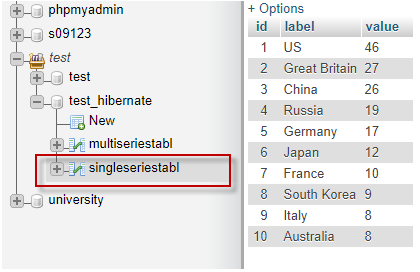
New, and select Dynamic Web Project. The New Dynamic Web Project dialog box opens. New Dynamic Web Project dialog box.Target runtime drop-down, select a preconfigured local web server. For the sample created in this article, we will be using Apache Tomcat 8.Finish.FCHibernateProject is created. FCHibernateProject in the Project Explorer.Properties.Java Build Path filter.Libraries tab.Add External Jars and add the path for the downloaded Hibernate Jars.mysql-connector.jar has to be included in the project. You also need to include the GSON.jar in order to retrieve the string containing the JSON representation of the data in an array. GSON is a Java library that is used to convert: GSON and the mysql-connector.jar files are available in the includeJarFiles folder of the downloaded package for the FusionCharts JSP wrapper. To access the includeJarFiles folder, follow the steps outlined in Step 3. Project Explorer, in the FCHibernateProject folder, right click the src subfolder.New → PackageNew Java Package dialog box opens.fusioncharts to save the FusionCharts.java wrapper file.Finish.WebContent folder of the FCHibernateProject. FusionData.java in this sample, contains the corresponding instance variables for the fields of the database table, along with the setter() and getter() methods for the respective variables. To create the persistent class: Create a .java file, FusionData.java, and save it in the fetchdata package. Copy the following code and paste it in the FusionData.java file: package fetchdata;
public class FusionData {
private int ID;
private String labelData;
private String valueData;
public int getID() {
return ID;
}
public void setID(int id) {
ID = id;
}
public String getLabelData() {
return labelData;
}
public void setLabelData(String newlabel) {
this.labelData = newlabel;
}
public String getValueData() {
return valueData;
}
public void setValueData(String newvalue) {
this.valueData = newvalue;
}
} SimpleChart.java, and save it in the fetchdata package Copy the following code and paste it in the SimpleChart.java file: package fetchdata;
import java.util.Iterator;
import java.util.List;
import org.hibernate.Session;
import org.hibernate.SessionFactory;
import org.hibernate.Transaction;
import org.hibernate.cfg.Configuration;
public class SimpleChart {
public List<FusionData> getListData(){
SessionFactory sessionFactory = new Configuration().configure().buildSessionFactory();
Session session = sessionFactory.openSession();
Transaction tx = session.beginTransaction();
List<FusionData> entireData = session.createQuery("FROM FusionData").list();
tx.commit();
session.close();
return entireData;
}
} The records returned by the Java class are stored in the FusionData list. Project Explorer, in the FCHibernateProject folder, right click the src subfolder.New → Others.New dialog box opens.New dialog box, select XML File to set the type of the file to be created.Next. The New XML File dialog box opens.New XML File dialog box, set the path of the folder in which the file will be saved in the Enter or select the parent folder field. For our sample, we will set it to FCHibernate/src. In the File name field, enter the filename. For our sample, we’ll name the file FusionData.hbm.xml.Finish.FusionData.hbm.xml file is created. Copy the following code and paste it in the FusionData.hbm.xml file: <?xml version="1.0"?>
<!DOCTYPE hibernate-mapping PUBLIC
"-//Hibernate/Hibernate Mapping DTD//EN"
"https://hibernate.sourceforge.net/hibernate-mapping-3.0.dtd" >
<hibernate-mapping>
<class name="fetchdata.FusionData" table="singleseriestabl">
<id name="ID" type="int">
<generator class="increment"/>
</id>
<property name="labelData" column="label" type="string"/>
<property name="valueData" column="value" type="string"/>
</class>
</hibernate-mapping>
hibernate.cfg.xml file for the Hibernate configurations. This file includes database-related information like the connection URL, the connection username and password, the connection driver, and the mapping resource. The modified directory structure, after this file is created, looks as shown in the image below: Copy the following code and paste it in the hibernate.cfg.xml file: <?xml version='1.0' encoding='UTF-8'?>
<!DOCTYPE hibernate-configuration PUBLIC
"-//Hibernate/Hibernate Configuration DTD 3.0//EN"
"https://hibernate.sourceforge.net/hibernate-configuration-3.0.dtd">
<hibernate-configuration>
<session-factory>
<!-- ________________ To be Edited _________________ -->
<property name="connection.url">jdbc:mysql://localhost:3306/test_hibernate</property>
<property name="connection.username">root</property>
<property name="connection.password"></property>
<!-- _____________ End of To be Edited ______________ -->
<property name="connection.driver_class">
com.mysql.jdbc.Driver
</property>
<property name="dialect">
org.hibernate.dialect.SQLServerDialect
</property>
<property name="current_session_context_class">thread</property>
<!-- _________ Defining the Mapping Files ___________ -->
<mapping resource="FusionData.hbm.xml" />
</session-factory>
</hibernate-configuration>
Note: In the above code, replace the jdbc_URL, jdbc_Username, and jdbc_Password variables with their appropriate values. TryChart.jsp, and save it in the WebContent folder. Copy the following code and paste it in the TryChart.jsp file: <%@page contentType="text/html" pageEncoding="UTF-8"%>
<%@page import="java.sql.*" %>
<%@page import="java.util.*" %>
<%@page import="com.google.gson.*" %>
<!DOCTYPE html>
<html>
<head>
<meta http-equiv="Content-Type" content="text/html; charset=UTF-8">
<title>Creating Charts with Data from a Database - fusioncharts.com</title>
<script type="text/javascript" src="fusioncharts.js"></script>
<script type="text/javascript" src="fusioncharts.charts.js"></script>
<script type="text/javascript" src="fusioncharts.theme.zune.js"></script>
</head>
<body>
<div id="chart"></div>
<%@page import="fusioncharts.FusionCharts" %>
<%@page import="fetchdata.SimpleChart" %>
<%@page import="fetchdata.FusionData" %>
<%
//creating Map for storing chart dataSource kwy-value pairs
Map<String, String> chartobj = new HashMap<String, String>();
chartobj.put("caption", "Top 10 countries winning Gold medals");
chartobj.put("subcaption", "Rio Olympics 2016");
chartobj.put("yAxisName", "Medals won");
chartobj.put("paletteColors", "#3a4660");
chartobj.put("captionFontColor", "#3a4660");
chartobj.put("subCaptionFontColor", "#3a4660");
chartobj.put("labelFontColor", "#3a4660");
chartobj.put("yAxisNameFontColor", "#3a4660");
chartobj.put("placevaluesInside", "1");
chartobj.put("rotatevalues", "0");
chartobj.put("usePlotGradientColor", "0");
chartobj.put("theme", "zune");
//loop counter
int i = 0;
//creating ArrayList Collections object to store the data of the chart
ArrayList arrData = new ArrayList();
//creating object reference for Hibernate class "SimpleChart" to connect DB and fetch data
SimpleChart myData = new SimpleChart();
//calling getListData() method using Hibernate class object "myData" to recieve
//as a List Collections object
List<FusionData> dataList = myData.getListData();
//System.out.println("Accessing in JSP : " + dataList.get(0).getValueData());
//iterating the List object to store in the "arrData" ArrayList object
while(i != dataList.size()) {
Map<String, String> lv = new HashMap<String, String>();
lv.put("label", dataList.get(i).getLabelData());
lv.put("value", dataList.get(i).getValueData());
arrData.add(lv);
i++;
}
//System.out.println("Accessing after fetching : " + arrData);
//create 'dataMap' map object to make a complete FC datasource.
Map<String, String> dataMap = new LinkedHashMap<String, String>();
//create 'Gson' object
Gson gson = new Gson();
/* gson.toJson() the data to retrieve the string containing the
JSON representation of the data in the array.
*/ dataMap.put("chart", gson.toJson(chartobj));
dataMap.put("data", gson.toJson(arrData));
//creating FC instance using FusionCharts JSP wrapper
FusionCharts columnChart= new FusionCharts(
"column2d", //type of chart
"myChart", //unique chart ID
"740","470", //width and height of the chart
"chart", //div ID of the chart container
"json", //data format
gson.toJson(dataMap) //data source
);
%>
<!-- Step 5: Render the chart -->
<%=columnChart.render()%>
</body>
</html>
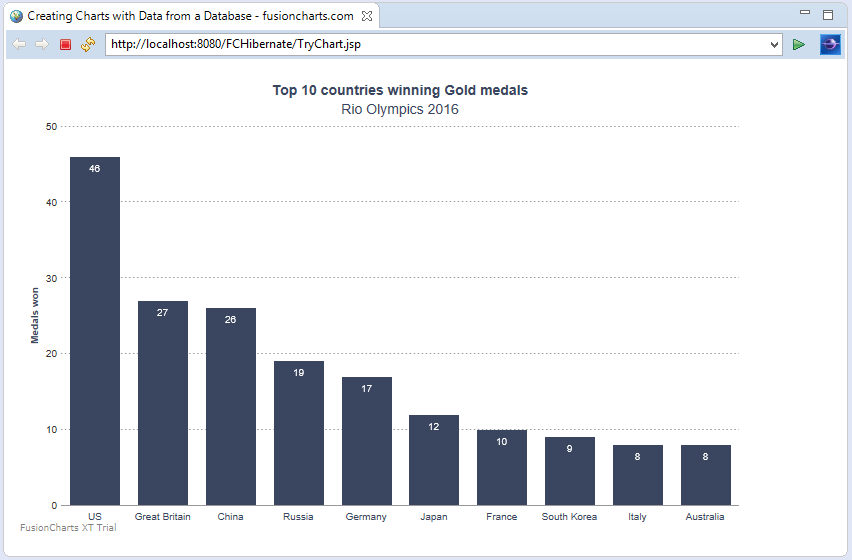
After execution, your output should look as shown in the image below: To create pie charts and generate statistical data, you’ll find this list of the best…
To implement FusionCharts in a dynamically resizing flexbox layout, ensure that the chart's dimensions are…
At FusionCharts, we believe in empowering developers and businesses with cutting-edge data visualization tools that…
Ever had a data set that seemed more complicated than a Rubik's cube? You’re not…
We’ve all seen them in textbooks or presentations—those overlapping circles that simplify complex information into…
We’re excited to announce the upcoming release of FusionCharts v4.1—a groundbreaking step forward in the…