Ionic is one of the leading SDK (Software development kit) for hybrid mobile app development in open-source platform. The latest Ionic SDK, Ionic 2 is built on top of AngularJS. Ionic is an open source framework which provides an array of tools and services for unique development of hybrid mobile apps using web technologies like CSS, HTML5, and SasS.
This tutorial showcases how you can render charts in Ionic framework using SQLite which is an embedded SQL database engine. To render charts, we’ll use FusionCharts JavaScript Library.
Table of Contents
Before you start, make sure you have the following components on your local machine:
To render charts in Ionic 2 framework, refer to the step by step process given below:
npm install -g ionic cordovaionic start fusiondatabase blank
The above command will install all the dependencies to run a basic project.ionic cordova plugin add cordova-sqlite-storageimport { SQLite } from '@ionic-native/sqlite';providers: [SQLite,
StatusBar,
SplashScreen,
{provide: ErrorHandler, useClass: IonicErrorHandler}
]
import { SQLite, SQLiteObject } from '@ionic-native/sqlite';constructor(public navCtrl: NavController,private sqlite: SQLite) {
}
npm install angular2-fusioncharts --save
app.module.ts looks like: import { BrowserModule } from '@angular/platform-browser';
import { ErrorHandler, NgModule } from '@angular/core';
import { IonicApp, IonicErrorHandler, IonicModule } from 'ionic-angular';
import { SplashScreen } from '@ionic-native/splash-screen';
import { StatusBar } from '@ionic-native/status-bar';
import { SQLite } from '@ionic-native/sqlite';
import { MyApp } from './app.component';
import { HomePage } from '../pages/home/home';
// Import angular2-fusioncharts
import { FusionChartsModule } from 'angular2-fusioncharts';
// Import FusionCharts library
import * as FusionCharts from 'fusioncharts';
// Load FusionCharts Charts module
import Charts from "fusioncharts/fusioncharts.charts";
// Load themes
import themes from "fusioncharts/themes/fusioncharts.theme.fint";
@NgModule({
declarations: [
MyApp,
HomePage
],
imports: [
BrowserModule,
FusionChartsModule.forRoot(FusionCharts, Charts, themes),
IonicModule.forRoot(MyApp)
],
bootstrap: [IonicApp],
entryComponents: [
MyApp,
HomePage
],
providers: [SQLite,
    StatusBar,
    SplashScreen,
    {provide: ErrorHandler, useClass: IonicErrorHandler}
  ]
})
export class AppModule {}
With this, you have set the environment by installing and configuring all the applications required.
It’s time to create the database from where the data will be fetched to render the chart. In your home.ts file, copy the code below:
store=[];
label='';
value='';
items1 = [];
items2 = [];
draw()
{
this.sqlite.create({
name: 'data.db',
location: 'default'
})
.then((db: SQLiteObject) => {
//database create section
db.executeSql('CREATE TABLE IF NOT EXISTS singleseries(id INTEGER PRIMARY KEY AUTOINCREMENT,label,value)', {})
.then(() => console.log('Executed SQL'))
.catch(e => console.log(e));
//data insert section
db.executeSql('INSERT INTO singleseries VALUES(?)', [this.label,this.value])
.then(() => console.log('Executed SQL'))
.catch(e => console.log(e));
this.store=[];
this.items1 = [];
this.items2 =[];
this.items1.push({label: 'Java'});
this.items2.push({value: '36435'});
this.items1.push({label: 'JavaScript'});
this.items2.push({value: '28855'});
this.items1.push({label: 'PHP'});
this.items2.push({value: '24358'});
this.items1.push({label: 'SQL'});
this.items2.push({value: '18072'});
this.items1.push({label: 'C#'});
this.items2.push({value: '11648'});
this.items1.push({label: 'C++'});
this.items2.push({value: '8455'});
this.items1.push({label: 'Python'});
this.items2.push({value: '7760'});
this.items1.push({label: 'C'});
this.items2.push({value: '7359'});
this.items1.push({label: 'Shell'});
this.items2.push({value: '7359'});
for(var i = 0; i < this.items1.length; i++) {
var dataset={
label :this.items1[i].label,
value :this.items2[i].value
}
this.store.push(dataset);
}
}
It’s time to prepare the data source for the chart to be rendered. Refer to the code given below:
this.dataSource = {
"chart": {
"caption": "Widely used Programming languages",
"paletteColors": "#FFFFFF",
"bgColor": "#141B28",
"bgAlpha": "70",
"showBorder": "0",
"showCanvasBorder": "0",
"canvasbgcolor": "#141B28",
"canvasBgAlpha": "0",
"baseFontColor": "#ffffff",
"usePlotGradientColor": "0",
"plotBorderAlpha": "10",
"placeValuesInside": "0",
"plotspacepercent": "40",
"outCnvBaseFontsize": "15",
"axisLineAlpha": "25",
"yaxismaxvalue": "45000",
"formatnumberscale": "1",
"showxaxisline": "1",
"xaxislinecolor": "#ffffff",
"toolTipColor": "#ffffff",
"toolTipBorderThickness": "0",
"toolTipBgColor": "#000000",
"toolTipBgAlpha": "80",
"toolTipBorderRadius": "2",
"toolTipPadding": "5"
},
"data": this.store
}
this.visible = true;
}, (err) => {
alert('Unable to execute sql: '+JSON.stringify(err));
});
})
.catch(e => console.log(JSON.stringify(e)));
}
By following the steps mentioned above, you are ready with your home.ts file with all the required code:
import { Component } from '@angular/core';
import { NavController } from 'ionic-angular';
import { SQLite, SQLiteObject } from '@ionic-native/sqlite';
@Component({
selector: 'page-home',
templateUrl: 'home.html'
})
export class HomePage {
dataSource: Object;
visible: boolean = false;
constructor(public navCtrl: NavController,private sqlite: SQLite) {

  }
store=[];
label='';
value='';
items1 = [];
items2 = [];
draw()
{
this.sqlite.create({
name: 'data.db',
location: 'default'
})
.then((db: SQLiteObject) => {
//database create section
db.executeSql('CREATE TABLE IF NOT EXISTS singleseries(id INTEGER PRIMARY KEY AUTOINCREMENT,label,value)', {})
.then(() => console.log('Executed SQL'))
.catch(e => console.log(e));
//data insert section
db.executeSql('INSERT INTO singleseries VALUES(?)', [this.label,this.value])
.then(() => console.log('Executed SQL'))
.catch(e => console.log(e));
//data retrieve section
db.executeSql('select * from singleseries', {}).then((data) => {
this.store=[];
this.items1 = [];
this.items2 =[];
this.items1.push({label: 'Java'});
this.items2.push({value: '36435'});
this.items1.push({label: 'JavaScript'});
this.items2.push({value: '28855'});
this.items1.push({label: 'PHP'});
this.items2.push({value: '24358'});
this.items1.push({label: 'SQL'});
this.items2.push({value: '18072'});
this.items1.push({label: 'C#'});
this.items2.push({value: '11648'});
this.items1.push({label: 'C++'});
this.items2.push({value: '8455'});
this.items1.push({label: 'Python'});
this.items2.push({value: '7760'});
this.items1.push({label: 'C'});
this.items2.push({value: '7359'});
this.items1.push({label: 'Shell'});
this.items2.push({value: '7359'});
for(var i = 0; i < this.items1.length; i++) {
var dataset={
label :this.items1[i].label,
value :this.items2[i].value
}
this.store.push(dataset);
}
this.dataSource = {
      "chart": {
        "caption": "Widely used Programming languages",
          "paletteColors": "#FFFFFF",
          "bgColor": "#141B28",
          "bgAlpha": "70",
          "showBorder": "0",
          "showCanvasBorder": "0",
          "canvasbgcolor": "#141B28",
          "canvasBgAlpha": "0",
          "baseFontColor": "#ffffff",
          "usePlotGradientColor": "0",
          "plotBorderAlpha": "10",
          "placeValuesInside": "0",
          "plotspacepercent": "40",
          "outCnvBaseFontsize": "15",
          "axisLineAlpha": "25",
          "yaxismaxvalue": "45000",
          "formatnumberscale": "1",
          "showxaxisline": "1",
          "xaxislinecolor": "#ffffff",
          "toolTipColor": "#ffffff",
          "toolTipBorderThickness": "0",
          "toolTipBgColor": "#000000",
          "toolTipBgAlpha": "80",
          "toolTipBorderRadius": "2",
          "toolTipPadding": "5"
      },
      "data": this.store
    }

this.visible = true;

}, (err) => {
alert('Unable to execute sql: '+JSON.stringify(err));
});
})
.catch(e => console.log(JSON.stringify(e)));
}
}
Include FusionCharts directive inside home.html file located in home folder under src folder. [Reference path: src → home→ home.html]
Refer to the following code which will already be present in home.html file:
<ion-content padding>
<button ion-button color="danger" (click)="draw()" > Draw Chart </button>
<fusioncharts
          *ngIf="visible"
          width="100%"
          height="500"
          type="Bar2D"
          dataFormat="JSON"
          [dataSource]="dataSource">

      </fusioncharts>
</ion-content>
Now that we are done with the coding, it’s time to build the application. We will be working with android application (you can also build the application for iOS). Run the following command in your CMD shell:
ionic cordova build android
This command builds all the files for your application automatically.
Note: Please make sure you have cordova plugin installed in your system
All set?
It’s time to render the chart in your application. Just copy the command stated below and run it in your CMD shell:
ionic cordova android run
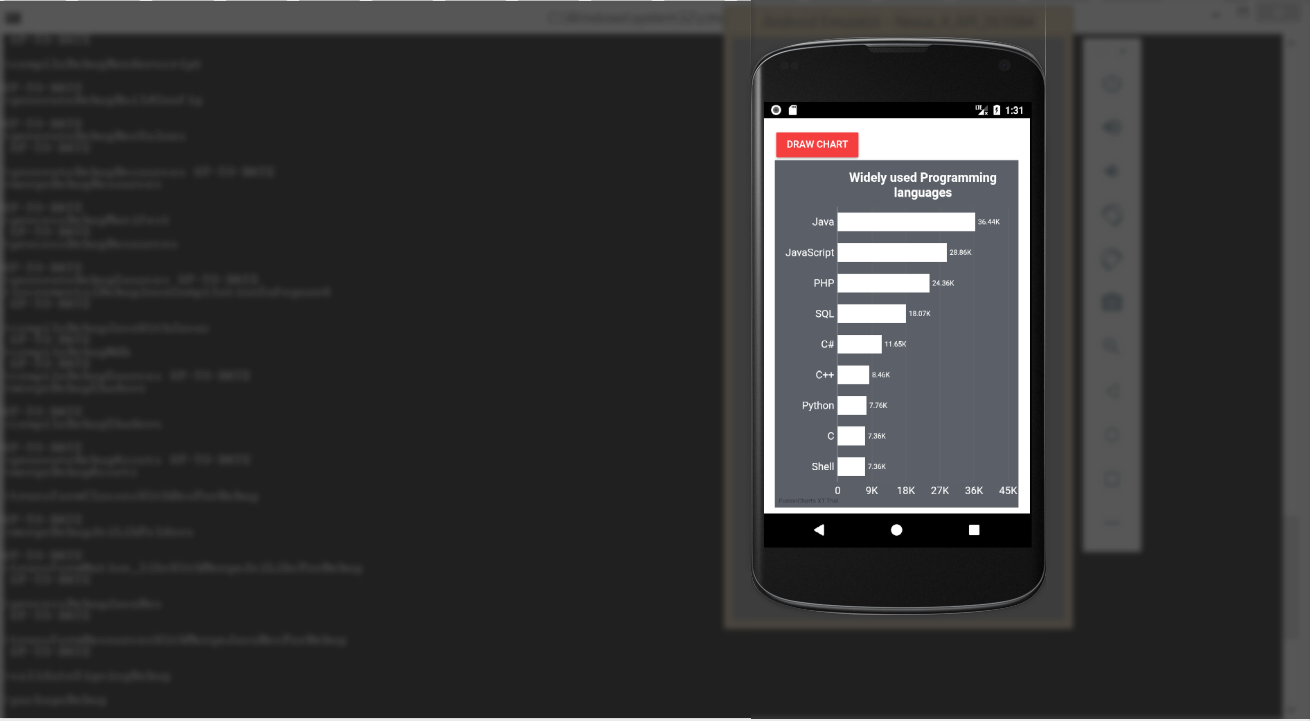
Running the above command will open your emulator and deploy the application. The output looks like:
Note: Before you run the above command, make sure that you have the android emulator already installed in your system. Please note, the above sample will not get rendered properly in a browser as most of the browsers do not support cordova natively. Thus we recommend to check the application in an emulator, as using Ionic server may not give you the desired output.
If you find any difficulty in rendering the chart or you see any error in your code, click here to download the complete source code of the sample project we have created for this tutorial.
Quick Answer You can add interactive charts to a TypeScript project using a JavaScript charting…
TL;DR A line chart plots data points along an x-axis (time) and y-axis (value), connected…
Bar charts, line charts, column charts- they all look similar, but picking the wrong one…
An area chart has been seen before, perhaps monitoring stock market data, web traffic, or…
Have you ever read a quarterly report of a company, a sports result, or a…
Quick Answer: Choose a JavaScript library based on the charts and interactions your application needs.…