Spring is a well-known framework with features that allow developers to concentrate on the actual code of their application rather than worrying about configuring configuration files, mapping, and other infrastructure details.
FusionCharts Suite XT includes a collection of JavaScript charts that accept data in simple XML and JSON formats. Furthermore, the charts in the package can be created with the Spring framework.
In this post, we’ll go over a tutorial that will teach you how to create charts in the Spring framework using a Graph Maker and fusioncharts.
Table of Contents
Before we start:
You’ve created and configured your project.
Now that the project has been created and configured, let’s look at the chart’s procedure.
Create a Java class that will act as the controller in the framework. The output of this will be an entire FusionCharts string you will call within the JSP page (or the view). The chart will render when you execute this string in the browser.
Note: Include the FusionCharts.java file in the same folder you have created the above Java class. If you have placed the FusionCharts JSP wrapper inside a different package, import it into the folder with the Java class.
To create the Java class, create a controller file and name it chartscontrollers.java. Copy the following code and paste it into the controller file:
package fusioncharts;

/**
 *
 * @author fusioncharts
 */
import java.io.IOException;
import javax.servlet.ServletException;
import javax.servlet.http.HttpServletRequest;
import javax.servlet.http.HttpServletResponse;
import org.springframework.web.servlet.ModelAndView;
import org.springframework.web.servlet.mvc.Controller;

public class chartscontroller implements Controller{
    @Override
    public ModelAndView handleRequest(HttpServletRequest request, HttpServletResponse response) throws ServletException, IOException {
        return new ModelAndView("/WEB-INF/jsp/index.jsp");
    }

     public String chartmaker(){
        FusionCharts lineChart= new FusionCharts(
            "line",// chartType
            "chart1",// chartId
            "600","350",// chartWidth, chartHeight
            "chart",// chartContainer
            "jsonurl",// dataFormat
            "data.json"
            );


        return lineChart.render();
    }

}
data.json
{
      "chart": {
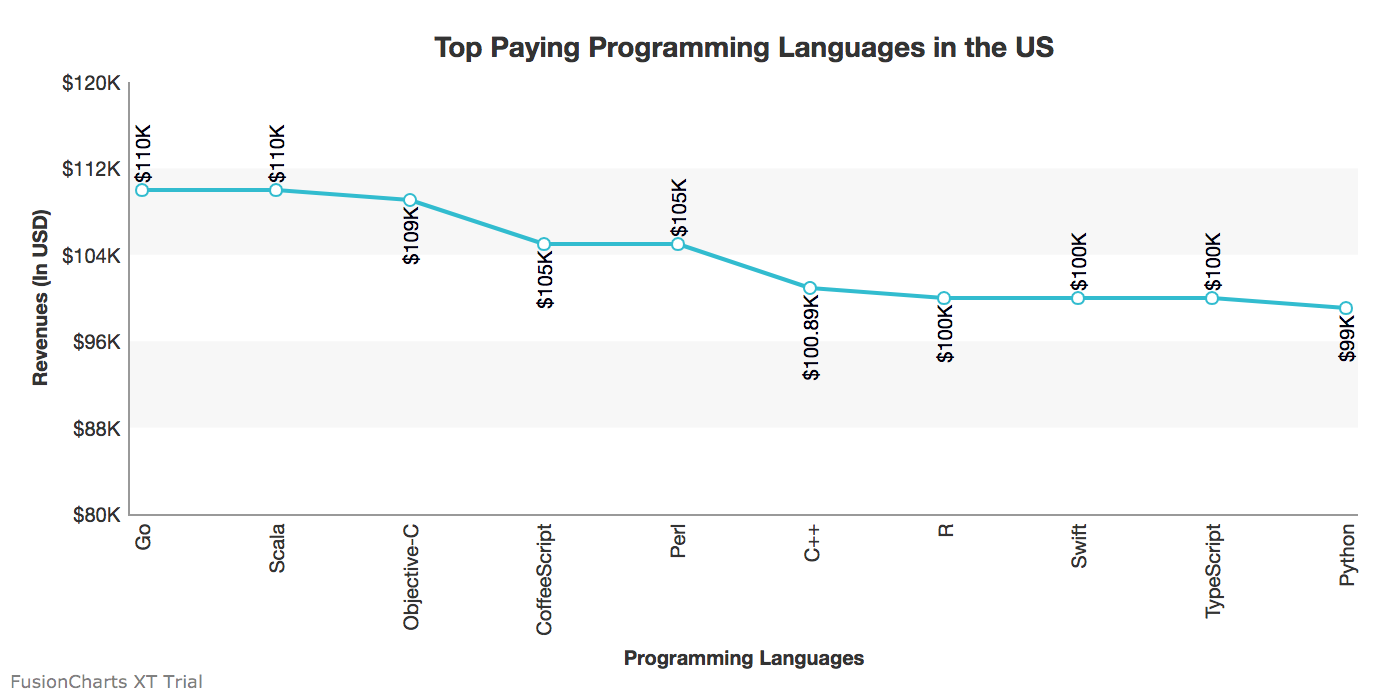
        "caption": "Top Paying Programming Languages in the US",
        "theme": "fint",
        "xAxisName": "Programming Languages",
        "yAxisName": "Revenues (In USD)",
        "numberPrefix": "$",
        "paletteColors": "#25BCD1",
        "bgColor": "#ffffff",
        "borderAlpha": "20",
        "canvasBorderAlpha": "0",
        "usePlotGradientColor": "0",
        "plotBorderAlpha": "10",
        "placevaluesInside": "1",
        "rotatevalues": "1",
        "rotateLabels": "1",
        "valueFontColor": "#00000",
        "showXAxisLine": "1",
        "xAxisLineColor": "#999999",
         "yAxisLineColor": "#999999",
        "divLinealpha": "0",
        "yaxisminvalue": "80000",
        "showAlternateHGridColor":"1",
        "showYAxisLine":"1"
  },
      "data": [{
        "label": "Go",
        "value": "110000"
      }, {
        "label": "Scala",
        "value": "110000"
      }, {
        "label": "Objective-C",
        "value": "109000"
      }, {
        "label": "CoffeeScript",
        "value": "105000"
      }, {
        "label": "Perl",
        "value": "105000"
      }, {
        "label": "C++",
        "value": "100890"
      }, {
        "label": "R",
        "value": "100000"
      }, {
        "label": "Swift",
        "value": "100000"
      }, {
        "label": "TypeScript",
        "value": "100000"
      }, {
        "label": "Python",
        "value": "99000"
      }]
    }
Create a JSP page and name it index.jsp. This page will act as the view. On running, this will render the chart in the browser.
Copy the following code and paste it into the index.jsp file:
<%@page import="fusioncharts.chartscontroller"%>
<%@page contentType="text/html" pageEncoding="UTF-8"%>
<%@page import="fusioncharts.FusionCharts" %>
<!DOCTYPE html>
<html>
    <head>
        <title>FusionCharts || www.fusioncharts.com</title>
        <script src="fusioncharts.js"></script>
        <script src="fusioncharts.charts.js"></script>
        <script src="fusioncharts.theme.fint.js"></script>

    </head>
    <body>
         <div id="chart"></div>
        <%

         chartscontroller a= new chartscontroller();
         out.println(a.chartmaker());
         %>

 </body>
</html>
Note: Ensure that you import the Fusioncharts wrapper in the JSP page and include the FusionCharts JS library files.
To render the chart, all you need to do is execute the redirect.jsp page that is automatically created by the framework at the time of creation and saved in the Web pages folder. This file will initiate the server and invoke the index.jsp file to run on the browser.
Your output should look like the chart shown in the image below:
That’s it! You’ve now created a Fusioncharts chart using the Spring framework.
If your output does not render as expected or if you have trouble with the configuration files, you can download the sample created for this tutorial from here and import it to your system.
Are dashboards dying because of AI? If yes, what is the future of dashboards? The…
FusionCharts 4.2.3 is now available with an important security dependency update and fixes for legend…
We released updated FusionCharts SDKs for Angular, Svelte, React Native, and Flutter to support newer…
Quick answer: Creating an interactive React Gantt chart is simple. First, you need to install…
Quick Answer: The best JavaScript map library for data visualization offers a wide range of…
Quick Answer You can add interactive charts to a TypeScript project using a JavaScript charting…