In the realm of data-driven decision-making, visualizing complex datasets is the key to unlocking meaningful insights. Data visualization bridges the gap between raw data and actionable data.
Enter ChatGPT – the groundbreaking natural language processing (NLP) tool. This blog post explores the intriguing world of decoding data through dialogue. From generating context to correlation explanations, discover the synergy between FusionCharts’ data visualization and ChatGPT for a more insightful charting
experience.
Table of Contents
The Role of Data Visualization in Decision-Making
Data, in its raw form, can be overwhelming and difficult to interpret. Visualizations such as charts, graphs, and business dashboards simplify the complexity, allowing decision-makers to quickly grasp patterns, trends, and outliers, facilitating significant insights at a glance which leads to more informed and timely decisions.
Here are a few other ways visualization can facilitate data-driven decision-making:
✅Communication and Collaboration: Visualizations serve as a universal language and provide a common ground for teams to discuss and align on strategies. Non-technical stakeholders can participate in data-driven discussions more effectively.
✅Time-Efficient Analysis: Visualizations enable rapid analysis, saving time compared to traditional data examination methods. Decision-makers can focus on interpreting visual cues rather than sifting through extensive datasets, leading to quicker and more efficient decision-making.
✅Scenario Planning and Forecasting: Visualizing outcomes under various scenarios provides a foundation for scenario planning and forecasting, which aids in assessing the potential impact of different strategies and paves the way for adaptable decision-making and proactive risk mitigation.
✅Data-Driven Storytelling: Visualizations help weave a narrative around the data, turning statistics into stories that resonate with decision-makers. This storytelling aspect makes data more compelling, memorable, and influential in the decision-making process.
ChatGPT’s Contribution to Data Understanding
By integrating ChatGPT into the data visualization process, users can engage in natural language conversations to gain deeper insights and contextual information.
Here’s an example showcasing how ChatGPT can engage in meaningful conversations, providing detailed descriptions, insights, and annotations for specific data points in a visualization. For illustrative purposes, we’re using a real-world scenario of Marketing Spending vs. Website Traffic data.
Here’s the sample data source:
| Month | Marketing Spending ($) | Website Traffic |
|---|---|---|
| Jan 2022 | $10,000 | 50,000 |
| Feb 2022 | $15,000 | 60,000 |
| Mar 2022 | $20,000 (New Ad Campaign) | 75,000 |
| Apr 2022 | $18,000 | 70,000 |
Now let’s derive actionable insights from this data:
Descriptive Information
Insightful Analysis
Annotations Generation
Comparative Analysis
Historical Context
Correlation Explanations
A Dialogue Between FusionCharts and ChatGPT
For those interested in a more in-depth guide on data visualization using ChatGPT and Fusioncharts, it’s essential to consider the insights provided in our recent article, “Effortless Data Visualization: How FusionCharts and ChatGPT Make a Perfect Pair“. The article delves into the powerful synergy between ChatGPT and FusionCharts, two cutting-edge tools that are transforming the way we interact with data and create data visualizations.
For illustrative purposes, let’s transform the data points from our Marketing Spending vs. Website Traffic table into a visually appealing chart.
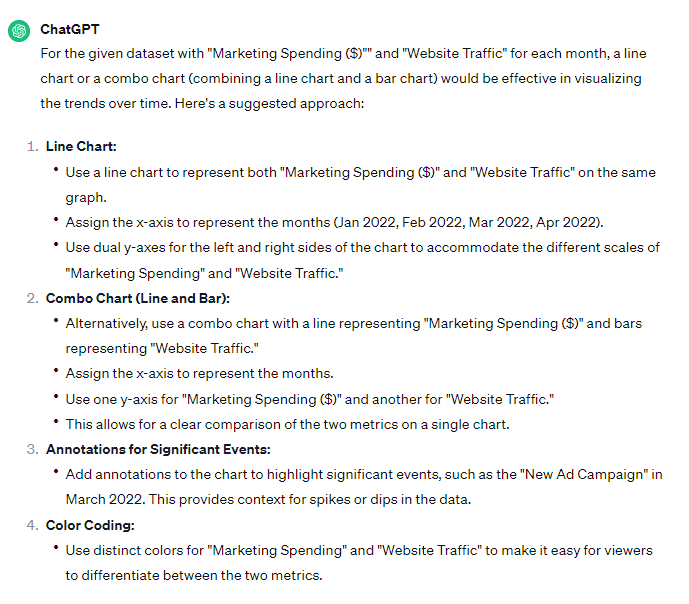
Without a doubt, these two charting options sound like a great way to chart our data points!

Javascript code for Line Chart
<!DOCTYPE html>
<html lang="en">
<head>
  <meta charset="UTF-8">
  <meta name="viewport" content="width=device-width, initial-scale=1.0">
  <title>Line Chart - FusionCharts</title>
  <!-- Include FusionCharts library -->
  <script src="https://cdn.fusioncharts.com/fusioncharts/latest/fusioncharts.js"></script>
  <script src="https://cdn.fusioncharts.com/fusioncharts/latest/themes/fusioncharts.theme.fusion.js"></script>
</head>
<body>
  <!-- Container to render the chart -->
  <div id="line-chart-container"></div>

  <!-- Script to create the line chart -->
  <script>
    FusionCharts.ready(function() {
      var revenueData = [{
        "label": "Jan 2022",
        "value": "10000",
        "traffic": "50000"
      }, {
        "label": "Feb 2022",
        "value": "15000",
        "traffic": "60000"
      }, {
        "label": "Mar 2022",
        "value": "20000",
        "traffic": "75000"
      }, {
        "label": "Apr 2022",
        "value": "18000",
        "traffic": "70000"
      }];

      var revenueChart = new FusionCharts({
        type: 'msline',
        renderAt: 'line-chart-container',
        width: '600',
        height: '400',
        dataSource: {
          chart: {
            caption: 'Marketing Spending and Website Traffic Trends',
            subCaption: 'Jan-Apr 2022',
            xAxisName: 'Month',
            yAxisName: 'Amount ($)',
            theme: 'fusion'
          },
          categories: [{
            category: revenueData.map(item => ({ "label": item.label }))
          }],
          dataset: [{
            seriesname: 'Marketing Spending',
            data: revenueData.map(item => ({ "value": item.value }))
          }, {
            seriesname: 'Website Traffic',
            renderAs: 'line',
            parentYAxis: 'S',
            data: revenueData.map(item => ({ "value": item.traffic }))
          }]
        }
      });

      revenueChart.render();
    });
  </script>
</body>
</html>
Javascript code for Combo Chart
<!DOCTYPE html>
<html lang="en">
<head>
  <meta charset="UTF-8">
  <meta name="viewport" content="width=device-width, initial-scale=1.0">
  <title>Combo Chart - FusionCharts</title>
  <!-- Include FusionCharts library -->
  <script src="https://cdn.fusioncharts.com/fusioncharts/latest/fusioncharts.js"></script>
  <script src="https://cdn.fusioncharts.com/fusioncharts/latest/themes/fusioncharts.theme.fusion.js"></script>
</head>
<body>
  <!-- Container to render the chart -->
  <div id="combo-chart-container"></div>

  <!-- Script to create the combo chart -->
  <script>
    FusionCharts.ready(function() {
      var revenueData = [{
        "label": "Jan 2022",
        "value": "10000",
        "traffic": "50000"
      }, {
        "label": "Feb 2022",
        "value": "15000",
        "traffic": "60000"
      }, {
        "label": "Mar 2022",
        "value": "20000",
        "traffic": "75000"
      }, {
        "label": "Apr 2022",
        "value": "18000",
        "traffic": "70000"
      }];

      var comboChart = new FusionCharts({
        type: 'mscombi2d',
        renderAt: 'combo-chart-container',
        width: '600',
        height: '400',
        dataSource: {
          chart: {
            caption: 'Marketing Spending and Website Traffic Trends',
            subCaption: 'Jan-Apr 2022',
            xAxisName: 'Month',
            yAxisName: 'Amount ($)',
            sYAxisName: 'Traffic',
            theme: 'fusion'
          },
          categories: [{
            category: revenueData.map(item => ({ "label": item.label }))
          }],
          dataset: [{
            seriesname: 'Marketing Spending',
            data: revenueData.map(item => ({ "value": item.value }))
          }, {
            seriesname: 'Website Traffic',
            renderAs: 'bar',
            parentYAxis: 'S',
            data: revenueData.map(item => ({ "value": item.traffic }))
          }]
        }
      });

      comboChart.render();
    });
  </script>
</body>
</html>
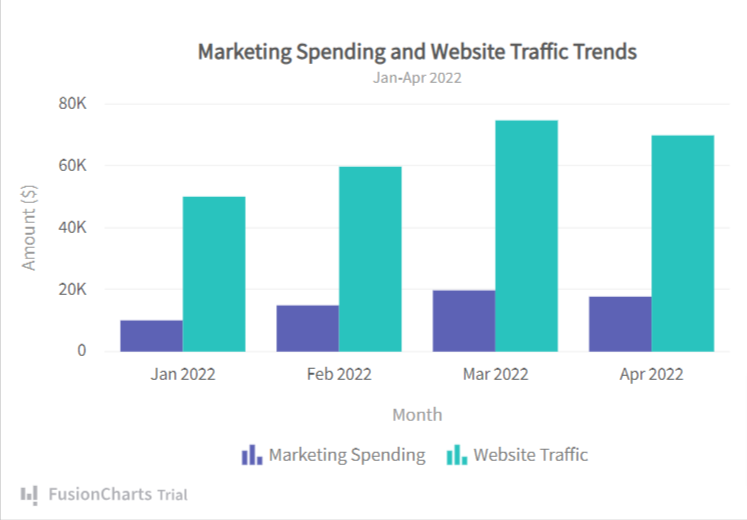
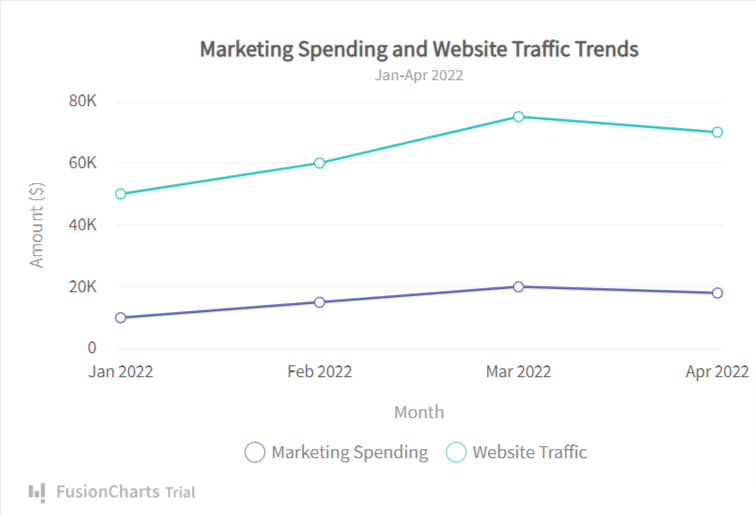
Now that we have the javascript code for both the Line chart and the Combo Chart, let’s view the outcomes using any demo code preview tool (e.g. JSSFiddle)
Visualizing the Line Chart
Visualizing the Combo Chart
Wrapping Up the Data Dialogue
Data visualization techniques powered by AI can offer a world of benefits. They help you unlock hidden patterns in your data analytics so you can take advantage of them to improve different aspects of your business.
These examples showcase how ChatGPT can engage in meaningful conversations, providing detailed descriptions, insights, and annotations for specific data points in a visualization. Users can interact naturally with ChatGPT to gain a deeper understanding of the data and derive actionable insights.
If you’d like more than just a data visualization tool, sign up for FusionCharts and enjoy robust charting solutions with over 100+ charts and +2000 maps with extensive documentation available for data visualization.
.blog_prompt { padding: 10px 8px; background: #f3f3f3; border-left: 4px solid green; margin-top: 20px;margin-bottom: 10px;}.table { text-align:center; width: 100%; margin-bottom: 1rem; background-color: transparent; text-indent: initial; border-spacing: 2px; border-color: gray;}.table thead th { vertical-align: bottom; border-bottom: 2px solid #dee2e6;}.table td, .table th { padding: 0.75rem; vertical-align: top; border: 1px solid #dee2e6;}